

从零到端到端自动驾驶实战-Pjoject2-第 1 章-环境搭建-CARLA-ROS2 集成
一、开发环境
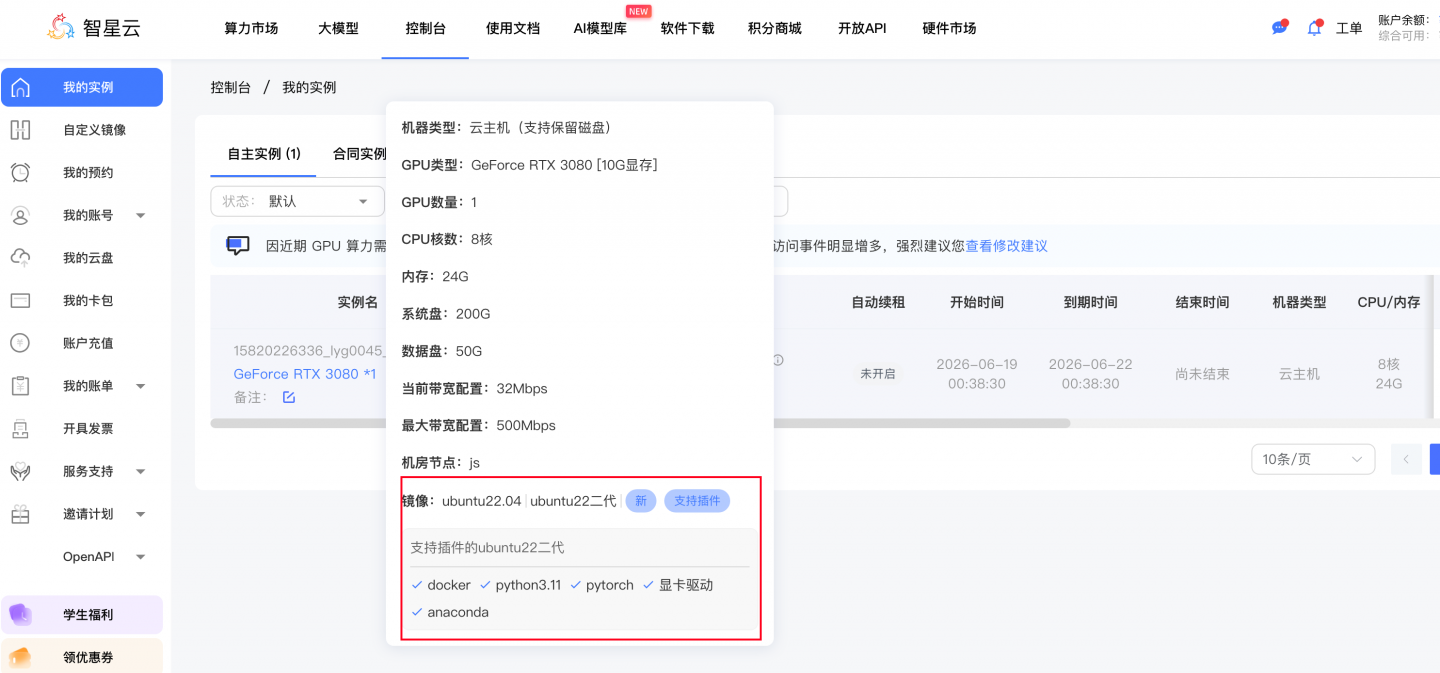
这里我们用 智星云 的运算力服务,购买 3080显卡,0.7元/小时;
https://gpu.ai-galaxy.cn/console/dashboard
检查NVIDIA 驱动
检查驱动,查看 nvidia-smi 配置, 智星云默认已经装好了驱动。
(base) root@ubuntu22:~# nvidia-smi
Fri Jun 19 10:53:50 2026
+-----------------------------------------------------------------------------------------+
| NVIDIA-SMI 550.78                 Driver Version: 550.78         CUDA Version: 12.4     |
|-----------------------------------------+------------------------+----------------------+
| GPU  Name                 Persistence-M | Bus-Id          Disp.A | Volatile Uncorr. ECC |
| Fan  Temp   Perf          Pwr:Usage/Cap |           Memory-Usage | GPU-Util  Compute M. |
|                                         |                        |               MIG M. |
|=========================================+========================+======================|
|   0  NVIDIA GeForce RTX 3080        Off |   00000000:00:08.0 Off |                  N/A |
| 30%   24C    P8             14W /  320W |      10MiB /  10240MiB |      0%      Default |
|                                         |                        |                  N/A |
+-----------------------------------------+------------------------+----------------------+

+-----------------------------------------------------------------------------------------+
| Processes:                                                                              |
|  GPU   GI   CI        PID   Type   Process name                              GPU Memory |
|        ID   ID                                                               Usage      |
|=========================================================================================|
|    0   N/A  N/A       711      G   /usr/lib/xorg/Xorg                              4MiB |
+-----------------------------------------------------------------------------------------+
(base) root@ubuntu22:~#
查看CUDA:
# 验证 CUDA
# apt-get update
# apt install nvidia-cuda-toolkit
# 如果没有nvcc命令,则执行上边的命令:
nvcc --version

# 打印
(base) root@ubuntu22:~# nvcc --version
nvcc: NVIDIA (R) Cuda compiler driver
Copyright (c) 2005-2021 NVIDIA Corporation
Built on Thu_Nov_18_09:45:30_PST_2021
Cuda compilation tools, release 11.5, V11.5.119
Build cuda_11.5.r11.5/compiler.30672275_0
(base) root@ubuntu22:~#
二、安装ROS2 Humble
ROS2 Humble 是我们今年(2026)的主力版本,官方支持到 2027 年 5 月。
2.1 添加 ROS2 软件源
# 确保 locale 是 UTF-8
locale  # 检查
sudo apt update && sudo apt install locales
sudo locale-gen en_US en_US.UTF-8
sudo update-locale LC_ALL=en_US.UTF-8 LANG=en_US.UTF-8
export LANG=en_US.UTF-8

# 添加 universe 源
sudo apt install software-properties-common
sudo add-apt-repository universe

# 添加 ROS2 GPG 密钥
sudo apt update && sudo apt install curl -y
sudo curl -sSL https://raw.githubusercontent.com/ros/\
rosdistro/master/ros.key -o /usr/share/keyrings/ros-archive-keyring.gpg

# 添加 ROS2 源到 apt list
echo "deb [arch=$(dpkg --print-architecture) signed-by=/usr/share/keyrings/ros-archive-keyring.gpg] http://packages.ros.org/ros2/ubuntu $(. /etc/os-release && echo $UBUNTU_CODENAME) main" | sudo tee /etc/apt/sources.list.d/ros2.list > /dev/null

# 国内的ROS2源,速度更快 (Ubuntu22.04,装 Humble)
echo "deb [arch=$(dpkg --print-architecture) signed-by=/usr/share/keyrings/ros-archive-keyring.gpg] https://mirrors.tuna.tsinghua.edu.cn/ros2/ubuntu $(. /etc/os-release && echo $UBUNTU_CODENAME) main" | sudo tee /etc/apt/sources.list.d/ros2.list > /dev/null
# lsb_release -cs

# cat /etc/apt/sources.list.d/ros2.list
# deb [arch=amd64 signed-by=/usr/share/keyrings/ros-archive-keyring.gpg] http://packages.ros.org/ros2/ubuntu jammy main

# 注意:
2.2 安装 ROS2 Humble 完整版
sudo apt update
sudo apt upgrade -y

# desktop-full 包含 RViz2, demos, 教学的例子等
sudo apt install ros-humble-desktop-full -y

# 安装 colcon (ROS2 编译工具)
sudo apt install python3-colcon-common-extensions -y

# 安装 rosdep (依赖管理)
sudo apt install python3-rosdep -y
sudo rosdep init
rosdep update

# 配置环境变量(如果是ubuntu 22.04,请安装,否则看下边的)
echo 'source /opt/ros/humble/setup.bash' >> ~/.bashrc
source ~/.bashrc

# 如果是24.04 版本
echo 'source /opt/ros/jazzy/setup.bash' >> ~/.bashrc
source ~/.bashrc
验证 ROS2 安装
# 终端 1: 启动 talker
ros2 run demo_nodes_cpp talker
# 应看到: [INFO] [talker]: Publishing: 'Hello World: 1'

# 终端 2: 启动 listener
ros2 run demo_nodes_py listener
# 应看到: [INFO] [listener]: I heard: [Hello World: 1]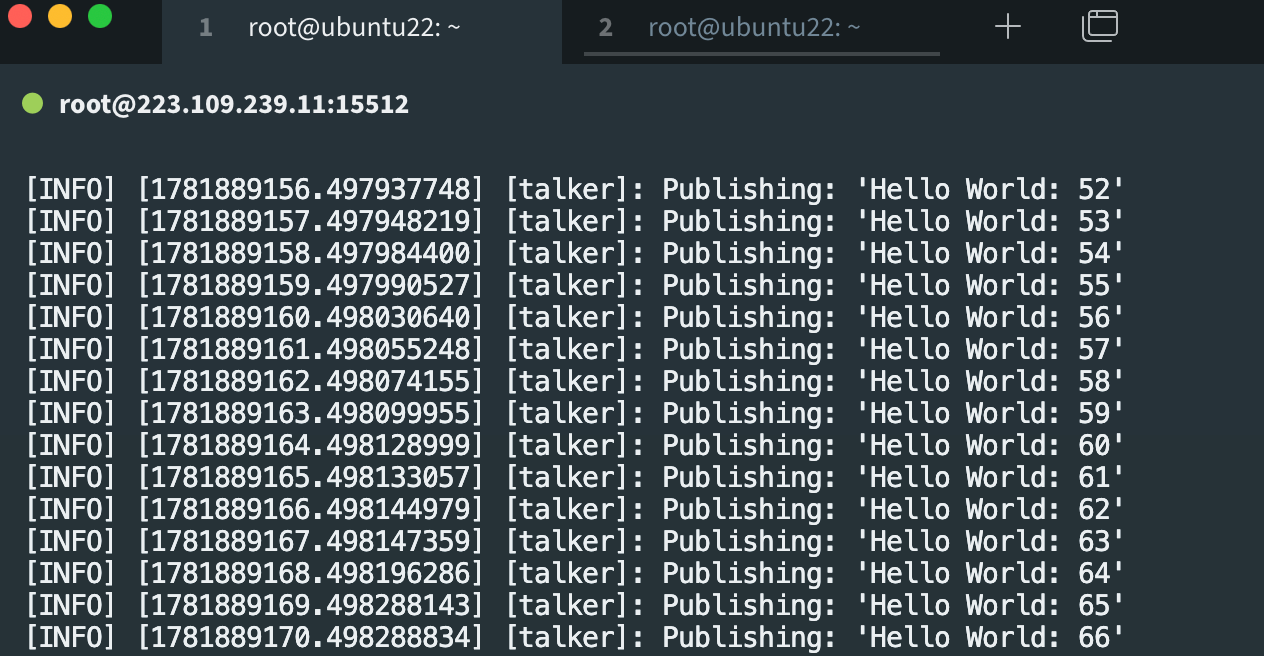
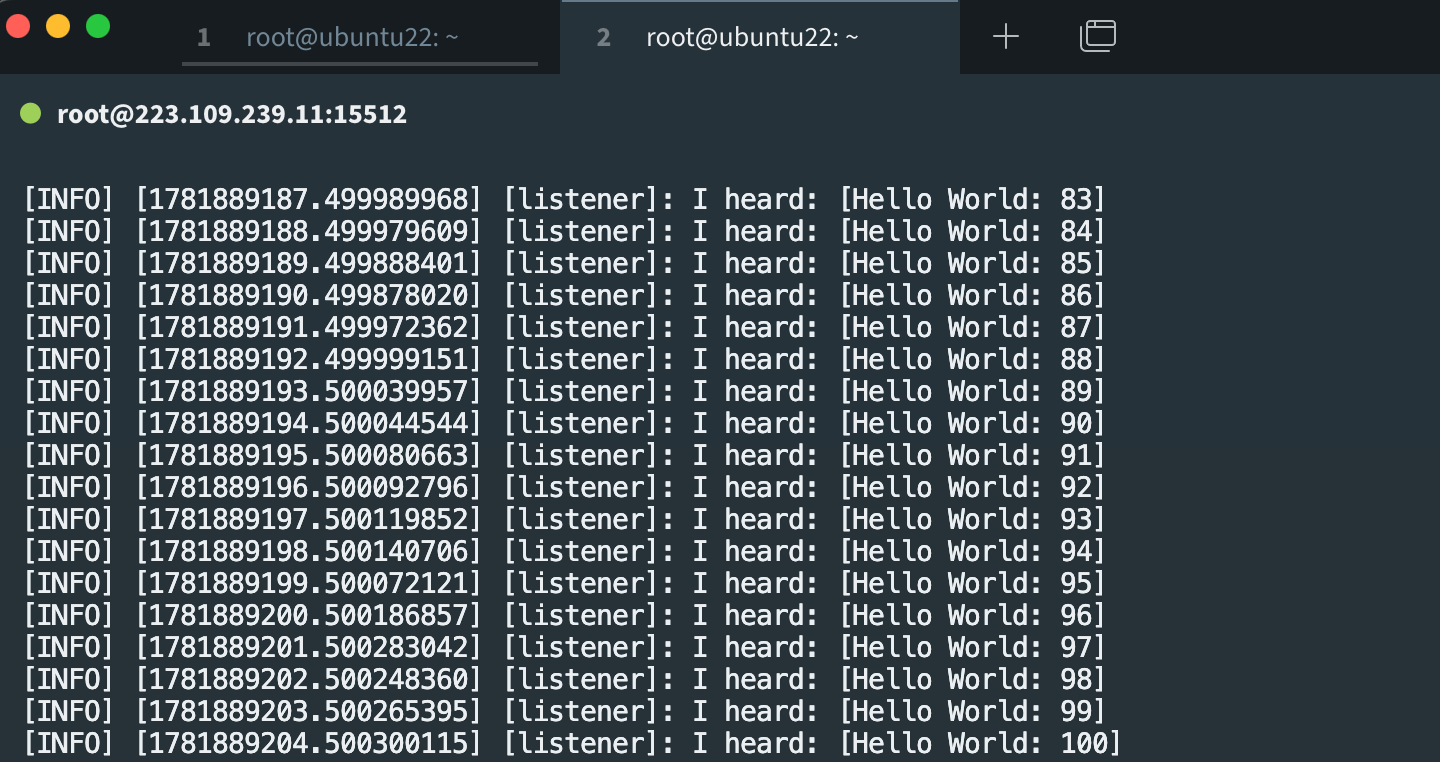
运行完上面的 talker/listener 后, 你应该看到两个终端同步打印消息。这意味着 ROS2 的发布订阅机制正常工作, 后续所有模块都依赖这个机制。
三、安装Python环境+PyTorch
我们用 Miniconda 管理 Python 环境。这是车企项目的标准做法——不同项目需要不同的 Python/PyTorch 版本,环境隔离能避免版本冲突。
先查看NVIDIA配置驱动:
(ad_sim) root@ubuntu22:~# nvidia-smi
Sat Jun 20 01:20:09 2026
+-----------------------------------------------------------------------------------------+
| NVIDIA-SMI 550.78                 Driver Version: 550.78         CUDA Version: 12.4     |
|-----------------------------------------+------------------------+----------------------+
| GPU  Name                 Persistence-M | Bus-Id          Disp.A | Volatile Uncorr. ECC |
| Fan  Temp   Perf          Pwr:Usage/Cap |           Memory-Usage | GPU-Util  Compute M. |
|                                         |                        |               MIG M. |
|=========================================+========================+======================|
|   0  NVIDIA GeForce RTX 3080        Off |   00000000:00:08.0 Off |                  N/A |
| 30%   25C    P8             23W /  320W |      10MiB /  10240MiB |      0%      Default |
|                                         |                        |                  N/A |
+-----------------------------------------+------------------------+----------------------+

+-----------------------------------------------------------------------------------------+
| Processes:                                                                              |
|  GPU   GI   CI        PID   Type   Process name                              GPU Memory |
|        ID   ID                                                               Usage      |
|=========================================================================================|
|    0   N/A  N/A       711      G   /usr/lib/xorg/Xorg                              4MiB |
+-----------------------------------------------------------------------------------------+
(ad_sim) root@ubuntu22:~#
安装环境:
# 下载并安装 Miniconda
wget https://repo.anaconda.com/miniconda/\
Miniconda3-latest-Linux-x86_64.sh
bash Miniconda3-latest-Linux-x86_64.sh
source ~/.bashrc

# 创建本项目主环境
# conda create -n ad_sim python=3.10 -y
conda create -n ad_sim python=3.7.16 -y
conda activate ad_sim

# 安装 PyTorch 2.1 + CUDA 12.1
pip install torch==2.1.0 torchvision==0.16.0 \
  --index-url https://download.pytorch.org/whl/cu121

# 验证
python -c "import torch; print(f'PyTorch: {torch.__version__}'); \
  print(f'CUDA: {torch.cuda.is_available()}'); \
  print(f'GPU: {torch.cuda.get_device_name(0)}')"
# 应显示:
PyTorch: 2.1.0+cu121
CUDA: True
GPU: NVIDIA GeForce RTX 3080

# 安装其他常用库
pip install numpy opencv-python matplotlib pandas tqdm \
  scipy scikit-learn transformers
四、安装 CARLA 0.9.15
下载 CARLA
# 创建 CARLA 安装目录
mkdir -p ~/carla && cd ~/carla

# 下载 CARLA 0.9.15 (约 7GB, 需 10-30 分钟)
# wget https://tiny.carla.org/carla-0-9-15-linux-tar \
  -O CARLA_0.9.15.tar.gz

    # 下载 CARLA 0.9.15 预编译包(约 15GB)
wget https://carla-releases.s3.us-east-005.backblazeb2.com/Linux/CARLA_0.9.15.tar.gz

# 解压
# tar -xzf CARLA_0.9.15.tar.gz

# 下载补充地图包(包含 Town06, Town07, Town10, Town11, Town12, Town13, Town15)
wget https://tiny.carla.org/additional-maps-0-9-15-linux \
  -O AdditionalMaps_0.9.15.tar.gz

# 解压主包
tar -xzvf CARLA_0.9.15.tar.gz

# 解压地图包到 Import 目录
mv AdditionalMaps_0.9.15.tar.gz Import/
./ImportAssets.sh
# 这会自动导入所有额外地图

# 验证目录结构
ls ~/carla
# 应看到: CarlaUE4.sh  Engine  ImportAssets.sh  PythonAPI  CarlaUE4 ...
安装 CARLA Python API
# CARLA 0.9.15 的 Python API 打包在 wheel 文件里
# conda activate ad_sim
conda create -n carla_py3.7 python=3.7.16 -y
conda activate carla_py3.7
cd ~/carla/PythonAPI/carla/dist/

# 查看可用的 wheel
ls
(base) root@ubuntu22:~/carla/PythonAPI/carla/dist# ls -l
总计 127012
-rw-rw-r-- 1 1001 1001 33798949 11月 10  2023 carla-0.9.15-cp27-cp27mu-manylinux_2_27_x86_64.whl
-rw-rw-r-- 1 1001 1001 31847920 11月 10  2023 carla-0.9.15-cp37-cp37m-manylinux_2_27_x86_64.whl
-rw-rw-r-- 1 1001 1001 33164371 11月 10  2023 carla-0.9.15-py2.7-linux-x86_64.egg
-rw-rw-r-- 1 1001 1001 31243089 11月 10  2023 carla-0.9.15-py3.7-linux-x86_64.egg

# 安装
pip install carla-0.9.15-cp37-cp37m-manylinux_2_27_x86_64.whl

# 验证
python -c "import carla; print(f'CARLA: {carla.__file__}')"
好的,为您提供最终完整方案,用户名为 musk。
完整操作步骤
1. 创建用户并配置权限(以root执行)
# 创建用户musk,加入sudo组
useradd -m -s /bin/bash -G sudo musk

# 设置密码(建议设置)
passwd musk

# 给予sudo免密权限(高权限)
echo "musk ALL=(ALL) NOPASSWD:ALL" >> /etc/sudoers
2. 复制CARLA文件并设置权限(以root执行)
# 复制CARLA到musk用户目录
cp -r /root/carla /home/musk/

# 更改所有权
chown -R musk:musk /home/musk/carla
3. 切换用户并配置环境
# 切换到musk用户
su - musk

# 进入CARLA目录
cd ~/carla
4. 安装Miniconda(以musk用户执行)
# 下载Miniconda
wget https://repo.anaconda.com/miniconda/Miniconda3-latest-Linux-x86_64.sh

# 安装(自动确认路径)
bash Miniconda3-latest-Linux-x86_64.sh -b -p $HOME/miniconda3

# 初始化conda
eval "$($HOME/miniconda3/bin/conda shell.bash hook)"
conda init

# 重新加载bash配置
source ~/.bashrc
5. 创建Python 3.7环境并安装CARLA
# 创建conda环境
conda create -n carla_py37 python=3.7 -y

# 激活环境
conda activate carla_py37

# 进入dist目录安装CARLA
cd ~/carla/PythonAPI/carla/dist
pip install carla-0.9.15-cp37-cp37m-manylinux_2_27_x86_64.whl

# 验证安装
python -c "import carla; print(f'CARLA {carla.__version__} installed successfully!')"
6. 运行CARLA
# 激活conda环境(如果还没激活)
conda activate carla_py37

# 返回CARLA主目录
cd ~/carla

# 运行CARLA
./CarlaUE4.sh -quality-level=Epic
一键脚本(完整自动化)
将以下内容保存为 setup_musk.sh,以root执行:
#!/bin/bash

# 1. 创建用户musk
echo "Creating user musk..."
useradd -m -s /bin/bash -G sudo musk
echo "musk:password123" | chpasswd
echo "musk ALL=(ALL) NOPASSWD:ALL" >> /etc/sudoers

# 2. 复制CARLA文件
echo "Copying CARLA files..."
cp -r /root/carla /home/musk/
chown -R musk:musk /home/musk/carla

# 3. 切换到musk用户完成安装
echo "Installing CARLA Python API..."
su - musk << 'EOF'
# 安装Miniconda
cd ~
wget -q https://repo.anaconda.com/miniconda/Miniconda3-latest-Linux-x86_64.sh
bash Miniconda3-latest-Linux-x86_64.sh -b -p $HOME/miniconda3
eval "$($HOME/miniconda3/bin/conda shell.bash hook)"
conda init
source ~/.bashrc

# 创建环境并安装CARLA
conda create -n carla_py37 python=3.7.16 -y
conda activate carla_py37
cd ~/carla/PythonAPI/carla/dist
pip install carla-0.9.15-cp37-cp37m-manylinux_2_27_x86_64.whl

echo "=========================================="
echo "CARLA installation complete!"
python -c "import carla; print(f'CARLA version: {carla.__version__}')"
echo "=========================================="
EOF

echo "Setup complete!"
echo "To use CARLA:"
echo "  1. su - musk"
echo "  2. conda activate carla_py37"
echo "  3. cd ~/carla && ./CarlaUE4.sh -quality-level=Epic"
执行脚本:
chmod +x setup_musk.sh
./setup_musk.sh
日常使用命令
# 切换到musk用户
su - musk

# 激活CARLA环境
conda activate carla_py37

# 运行CARLA服务器
cd ~/carla
./CarlaUE4.sh -quality-level=Epic

# 在另一个终端,运行Python脚本使用CARLA API
python your_carla_script.py
验证安装
# 以musk用户执行
su - musk
conda activate carla_py37

# 验证Python版本
python --version  # 应显示 Python 3.7.x

# 验证CARLA导入
python -c "import carla; print(f'CARLA {carla.__version__} is ready!')"

# 查看CARLA文件位置
python -c "import carla; print(carla.__file__)"
全部完成!现在您有了一个名为 musk 的高权限用户,可以在非root环境下运行CARLA了。
首次启动 CARLA
cd ~/carla

# 方式 1: 带图形界面 (调试时用)
./CarlaUE4.sh -quality-level=Epic

# 方式 2: 无头模式 (训练/批量时用, 省显存)
./CarlaUE4.sh -RenderOffScreen -quality-level=Low

# 方式 3: 指定端口 (避免冲突)
./CarlaUE4.sh -carla-rpc-port=2000 -carla-streaming-port=2001

# 首次启动可能需 1-2 分钟, 成功后将看到一个空的城市场景(Town10HD)
跑通 CARLA 自带例子
# 终端 1: 启动 CARLA
cd ~/carla && ./CarlaUE4.sh

# 终端 2: 启动 NPC 交通 (产生仿真城市氛围)
cd ~/carla/PythonAPI/examples
conda activate ad_sim
python generate_traffic.py -n 30 -w 10
# -n 30: 30辆车   -w 10: 10个行人

# 终端 3: 手动控制一辆车走走试试
python manual_control.py
# 按 WASD 控制车辆, Q 倒车, TAB 切换视角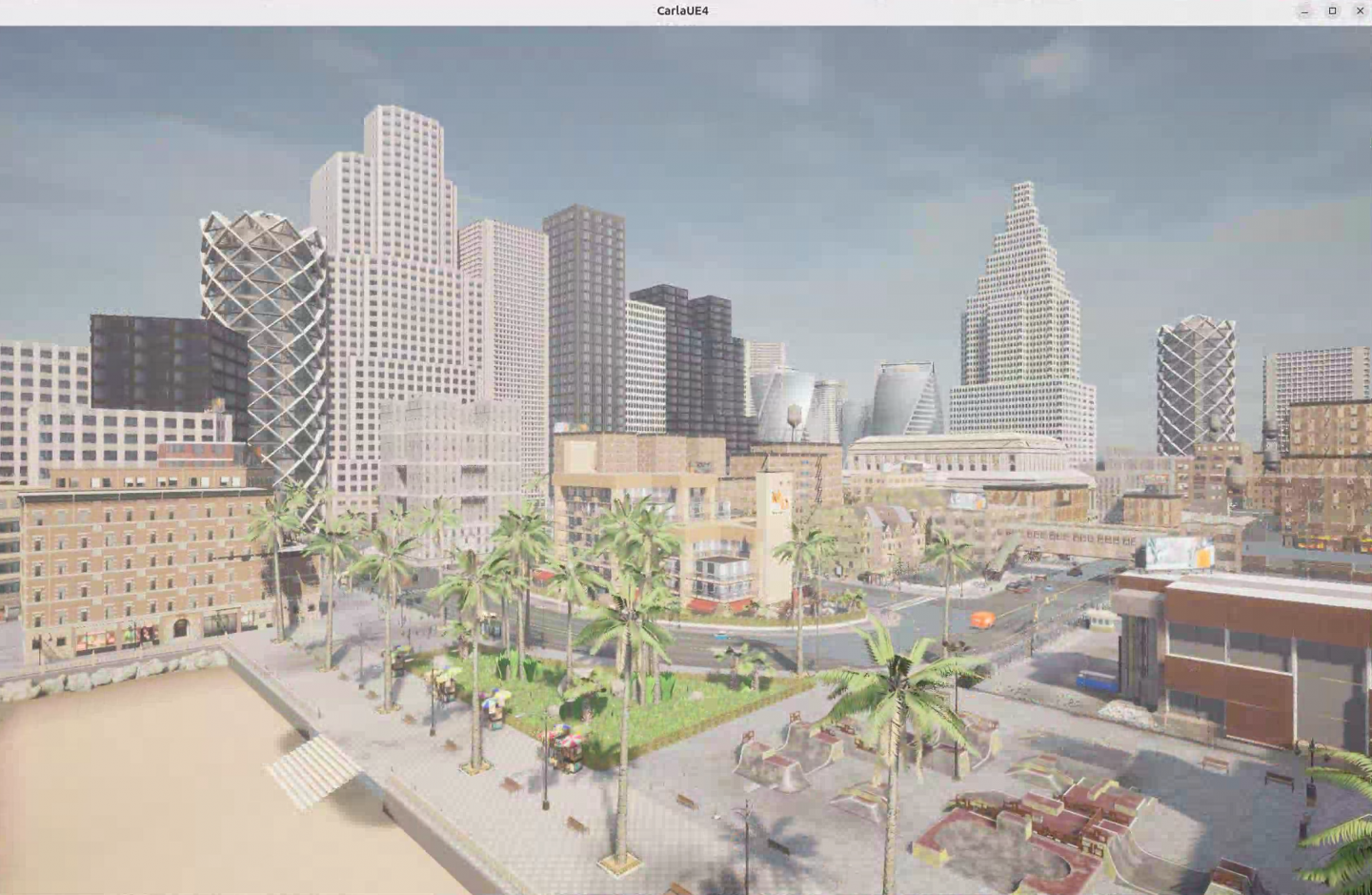
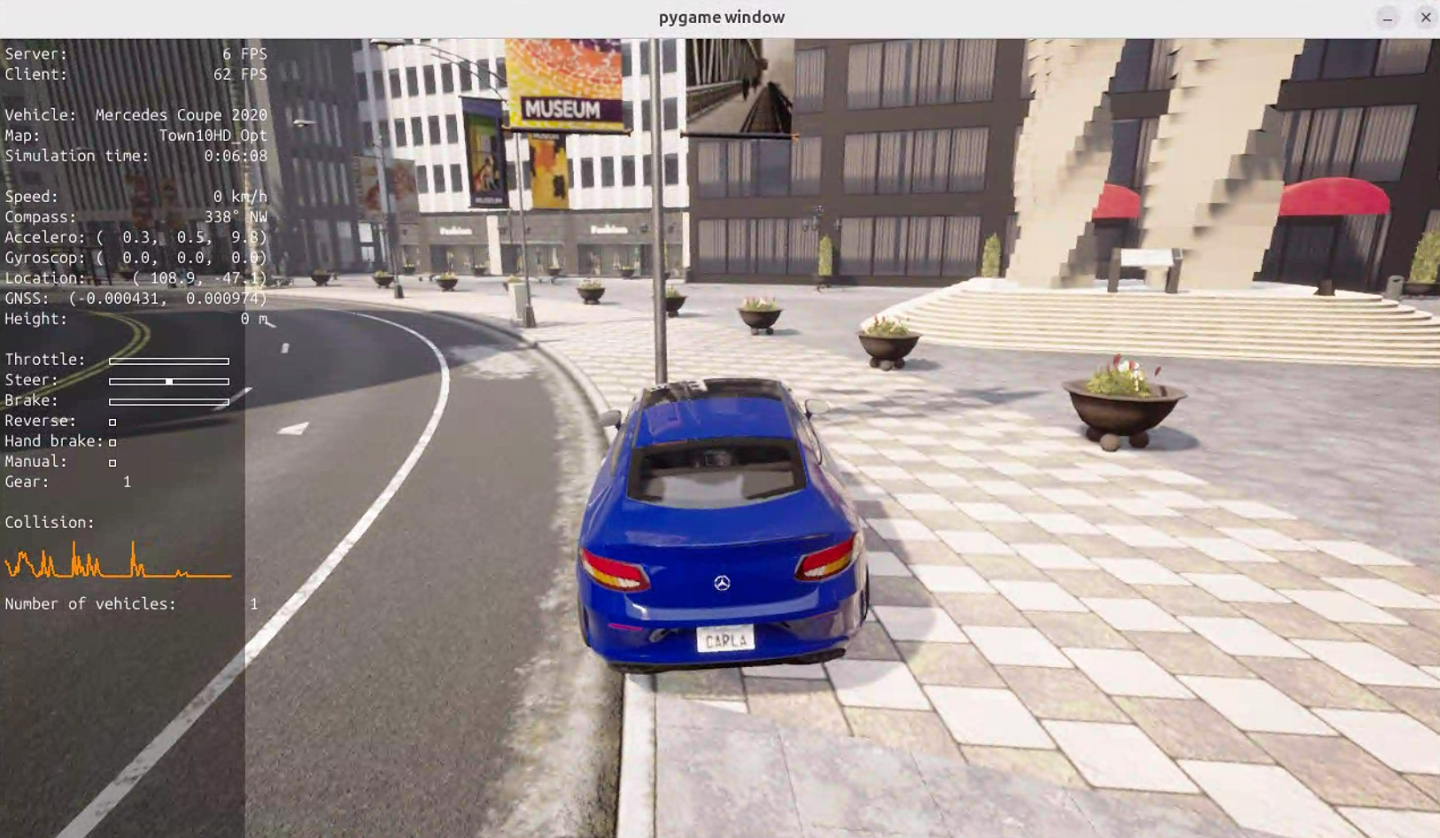
✅ 检查点 2
如果你能在 CARLA 中看到: 1)城市街景 2)30辆 NPC 车在行驶 3)你能手动控制一辆 Tesla Model 3 在城市里开, CARLA 部分就配置好了。此时你的项目完成度大约 60%。
为者常成,行者常至
自由转载-非商用-非衍生-保持署名(创意共享3.0许可证)


